
Troubleshooting guide
How to fix the problem
Win+Shift+S opens the area selection in the Clipboard tool; the copy can be Ctrl+V pasted or saved to the tool. Win+PrtScn usually saves the entire screen to the Pictures > Screenshots folder. What PrtScn does depends on your Windows setup and may require Fn on a laptop. Check the storage location if Pictures syncs with OneDrive.
Possible solutions
Choose the method that matches your situation. Start with the simplest suitable option and check the result. If the problem is fixed, you do not need to continue with the other methods.
A copy of the selected area
Win+Shift+S select the area and save to Clipboard or Ctrl+V to paste.
Steps to follow
- Press Windows, Shift and S together.
- Select the rectangular area capture, define the desired location with the mouse.
- Ctrl+V paste the copy into your document or click the Clipboard tool message and select Save.
- Select a folder, give it a name, and open the file to make sure the area is correct.
Full screen copy to file
Win+PrtScn, with Fn if needed, usually saves a copy in Pictures > Screenshots.
Steps to follow
- Open the screen you want to capture.
- Press Windows and PrtScn; some laptop keyboards still require Fn.
- In File Explorer, go to Pictures > Screenshots and find the latest file.
- If the folder has been moved to OneDrive, check it there; if there is no copy, use the Clipboard tool.
Opening the tool through the menu
If the combinations do not work, open the Clipboard tool in the Start menu and capture with the mouse.
Steps to follow
- Type "Snipping Tool" or "Snipping Tool" in the Start search and open it.
- Click "New", select an area with the mouse.
- Click the save button in the tool window, select a folder and open the saved photo.
If the problem persists
Open the Clipboard tool via the Start menu and check the save location. Some keyboards require Fn; protected video content may be captured in black.
Request a repairInstructions for your device
Windows 11 · Snipping Tool (English interface)
A copy of the selected area
1. Open the capture toolbar
Press Windows, Shift and S together.
Schematic illustration WindowsShiftS2. Select the rectangular area capture, define the desired location with the mouse
Select the rectangular area capture, define the desired location with the mouse.
3. Ctrl+V paste the copy into your document or click the Clipboard tool message and select Save
Ctrl+V paste the copy into your document or click the Clipboard tool message and select Save.
4. Check the saved file
Select a folder, give it a name, and open the file to make sure the area is correct.
Expected result: The saved file shows the selected screen area.
Full screen copy to file
1. Open the screen you want to capture
Open the screen you want to capture.
2. Press Windows and PrtScn; some laptop keyboards still require Fn
Press Windows and PrtScn; some laptop keyboards still require Fn.
3. In File Explorer, go to Pictures > Screenshots and find the latest file
In File Explorer, go to Pictures > Screenshots and find the latest file.
4. If the folder has been moved to OneDrive, check it there; if there is no copy, use the Clipboard tool
If the folder has been moved to OneDrive, check it there; if there is no copy, use the Clipboard tool.
Opening the tool through the menu
1. Open Snipping Tool
Type "Snipping Tool" or "Snipping Tool" in the Start search and open it.
2. Choose capture mode
Open the capture mode menu and select Rectangle.
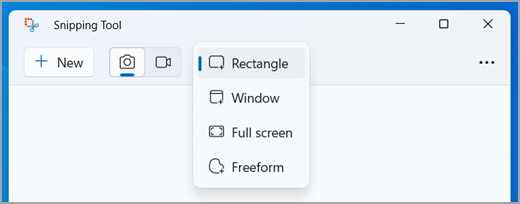 Enlarge image ↗
- Select Rectangle.
3. Start a new capture
Choose Rectangle mode. Select New and drag to select the area.
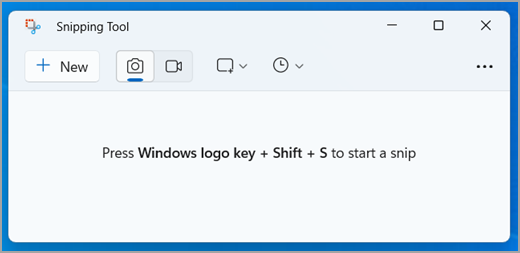 Enlarge image ↗
- Select New to start capturing.
4. Click the save button in the tool window, select a folder and open the saved photo
Click the save button in the tool window, select a folder and open the saved photo.
Windows 10
A copy of the selected area
1. Press Windows, Shift and S together
Press Windows, Shift and S together.
Schematic illustration WindowsShiftS2. Select the rectangular area capture, define the desired location with the mouse
Select the rectangular area capture, define the desired location with the mouse.
3. Ctrl+V paste the copy into your document or click the Clipboard tool message and select Save
Ctrl+V paste the copy into your document or click the Clipboard tool message and select Save.
4. Select a folder, give it a name, and open the file to make sure the area is correct
Select a folder, give it a name, and open the file to make sure the area is correct.
Full screen copy to file
1. Open the screen you want to capture
Open the screen you want to capture.
2. Press Windows and PrtScn; some laptop keyboards still require Fn
Press Windows and PrtScn; some laptop keyboards still require Fn.
Schematic illustration WindowsPrtScn3. In File Explorer, go to Pictures > Screenshots and find the latest file
In File Explorer, go to Pictures > Screenshots and find the latest file.
4. If the folder has been moved to OneDrive, check it there; if there is no copy, use the Clipboard tool
If the folder has been moved to OneDrive, check it there; if there is no copy, use the Clipboard tool.
Opening the tool through the menu
1. Type "Snipping Tool" or "Snipping Tool" in the Start search and open it
Type "Snipping Tool" or "Snipping Tool" in the Start search and open it.
2. Click "New", select an area with the mouse
Click "New", select an area with the mouse.
3. Click the save button in the tool window, select a folder and open the saved photo
Click the save button in the tool window, select a folder and open the saved photo.